

Postage Guide
For smaller parcels and letters, use Royal Mail Click & Drop; otherwise use Parcel Monkey. If your parcel is urgent, use ZedCarz for same-day delivery.
Royal Mail Click & Drop
Section titled “Royal Mail Click & Drop”Log In
Section titled “Log In”- Open your web browser and go to
https://parcel.royalmail.com.
Use the following credentials to log in:
- Username:
admin@wovenandwoods.com - Password:
23Yorkstreet
Set Your Shipping Label Format
Section titled “Set Your Shipping Label Format”- First, ensure your label format settings are configured. Labels can be printed to either A4 paper (using a normal printer) or 6x4 labels (using the Brother label printer and the larger 6x4 labels).
- To set the label format, click the Set your shipping label format option on the Dashboard.
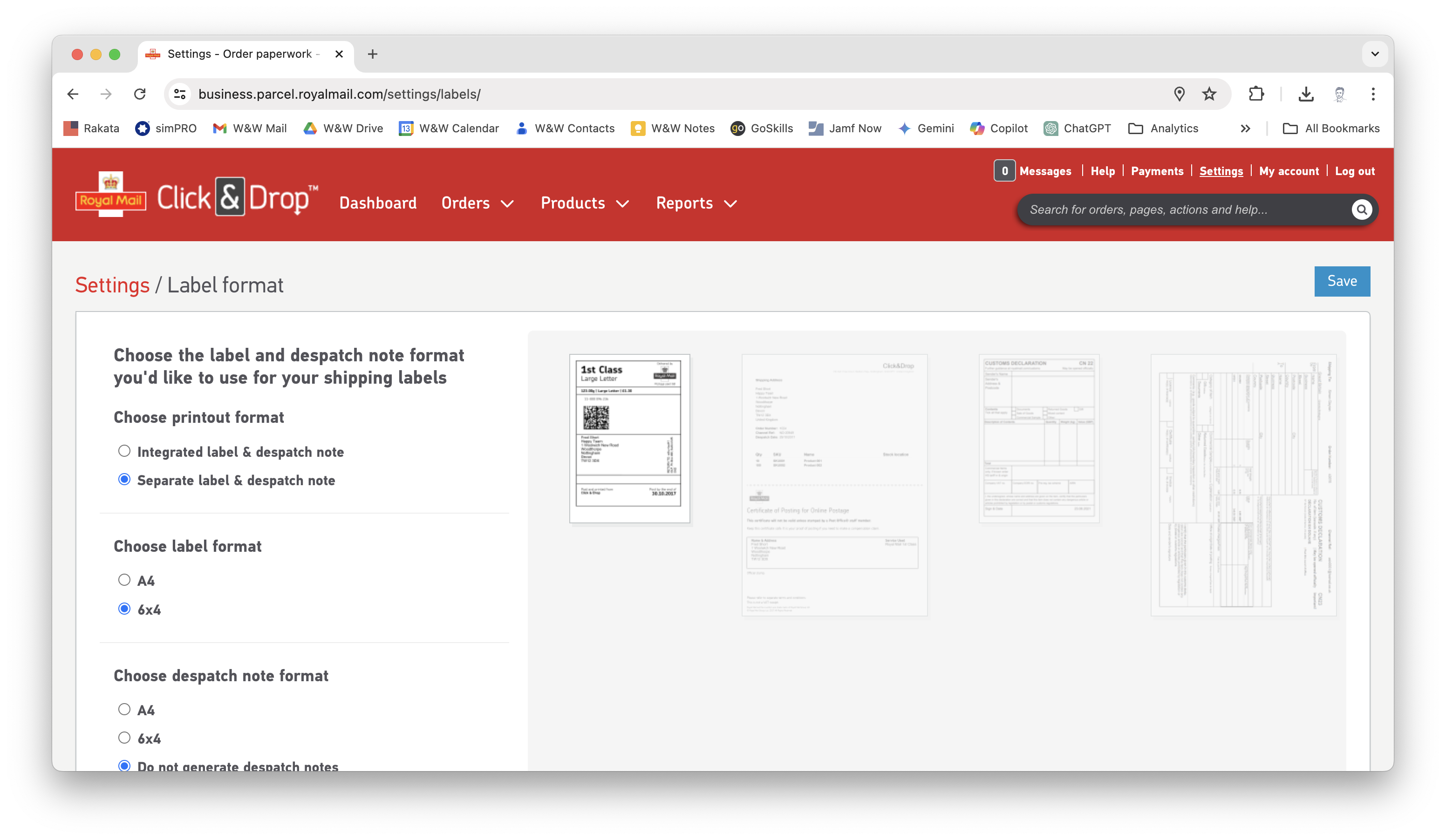
- You can ignore most settings apart from Choose label format. Make sure you select the correct format now, as you won’t be able to change it after ordering the label.
Check Your Return Address
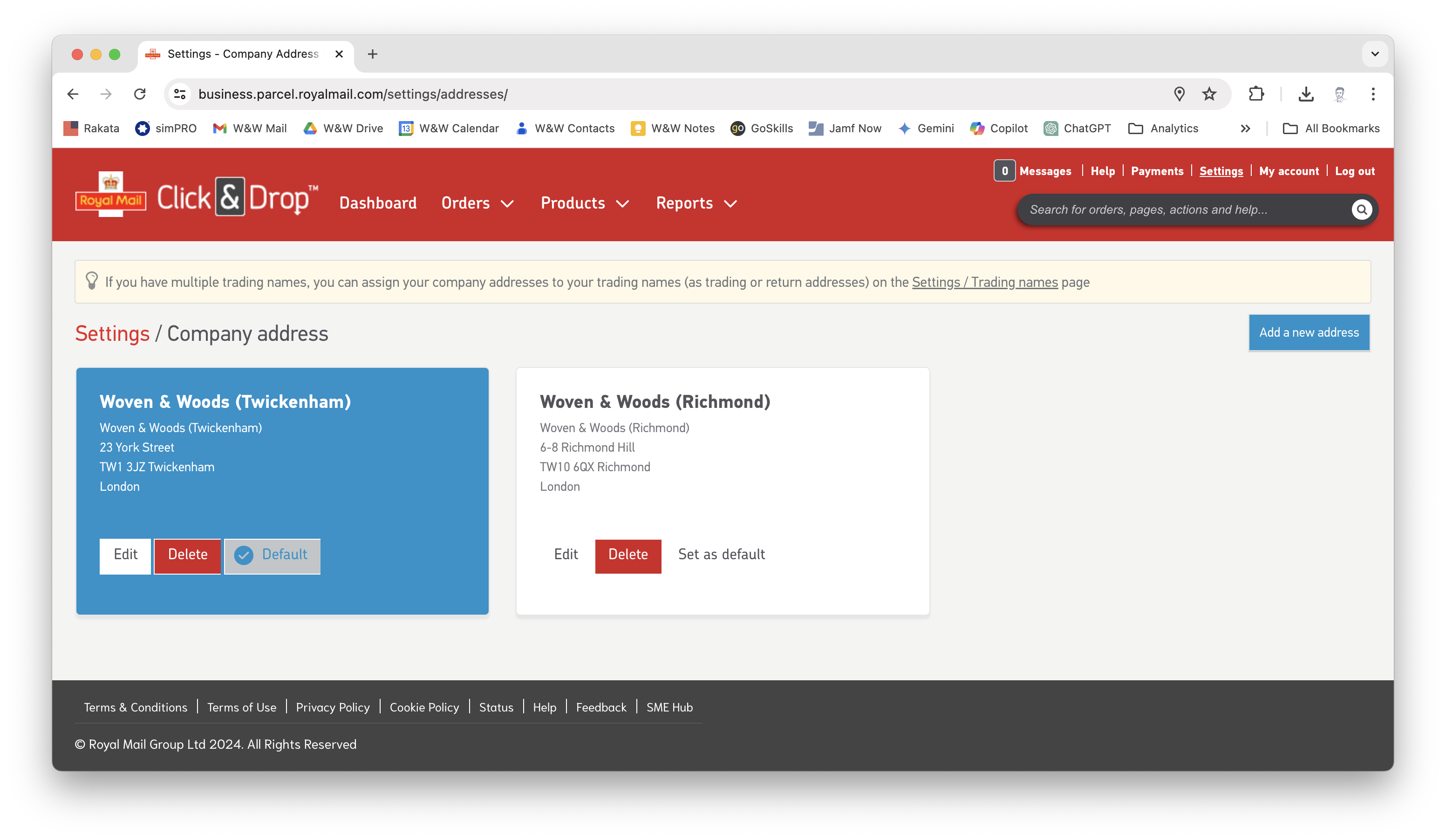
Section titled “Check Your Return Address”- Next, check that the return address is set to the showroom you are working from. If for any reason the parcel can’t be delivered, this is where it will be returned.
Buy and Print a Shipping Label
Section titled “Buy and Print a Shipping Label”- Click the Buy and print a shipping label button on the Dashboard to start building your label.
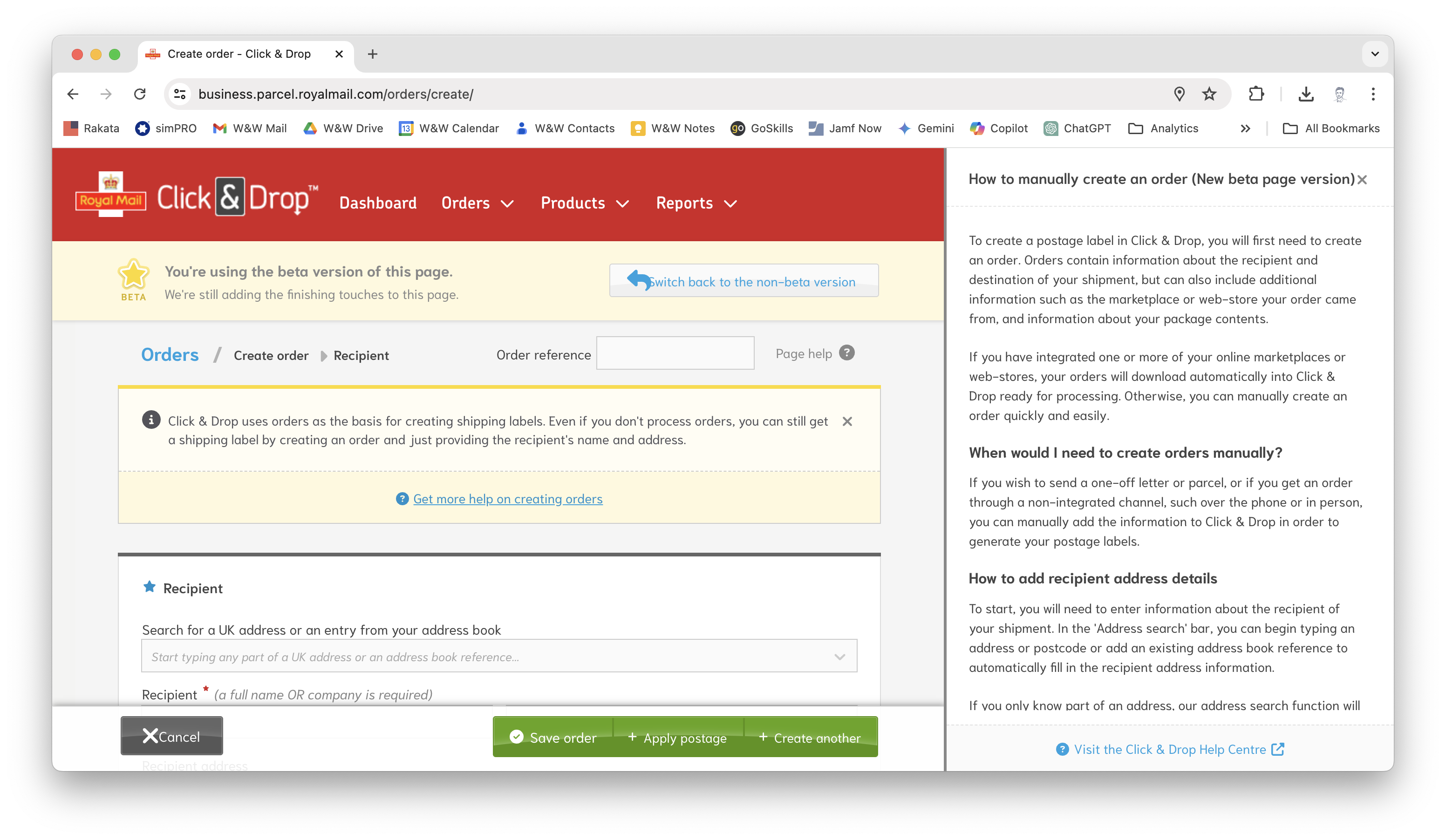
- Scroll down to the Recipient section and start typing the address you are sending the parcel to in the box labelled Search for a UK address or an entry from your address book.
- If the address has been added to our address book, it should pop up straight away:
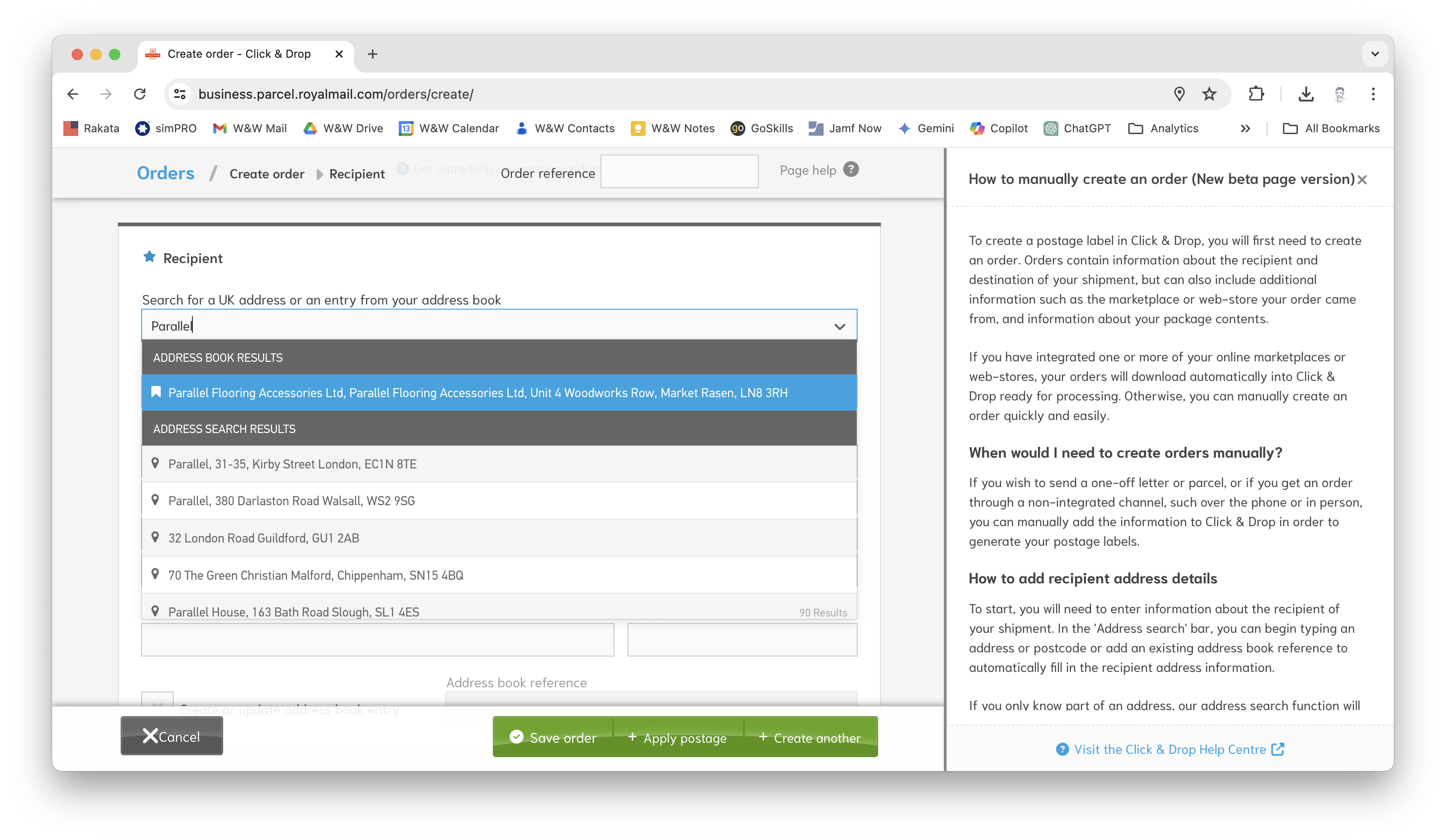
- Alternatively, if this is a new address, you can start typing it here, and the website will try to automatically find the property for you. If it’s a company, you can start typing their name; otherwise, just write the first line of the address or the postcode.
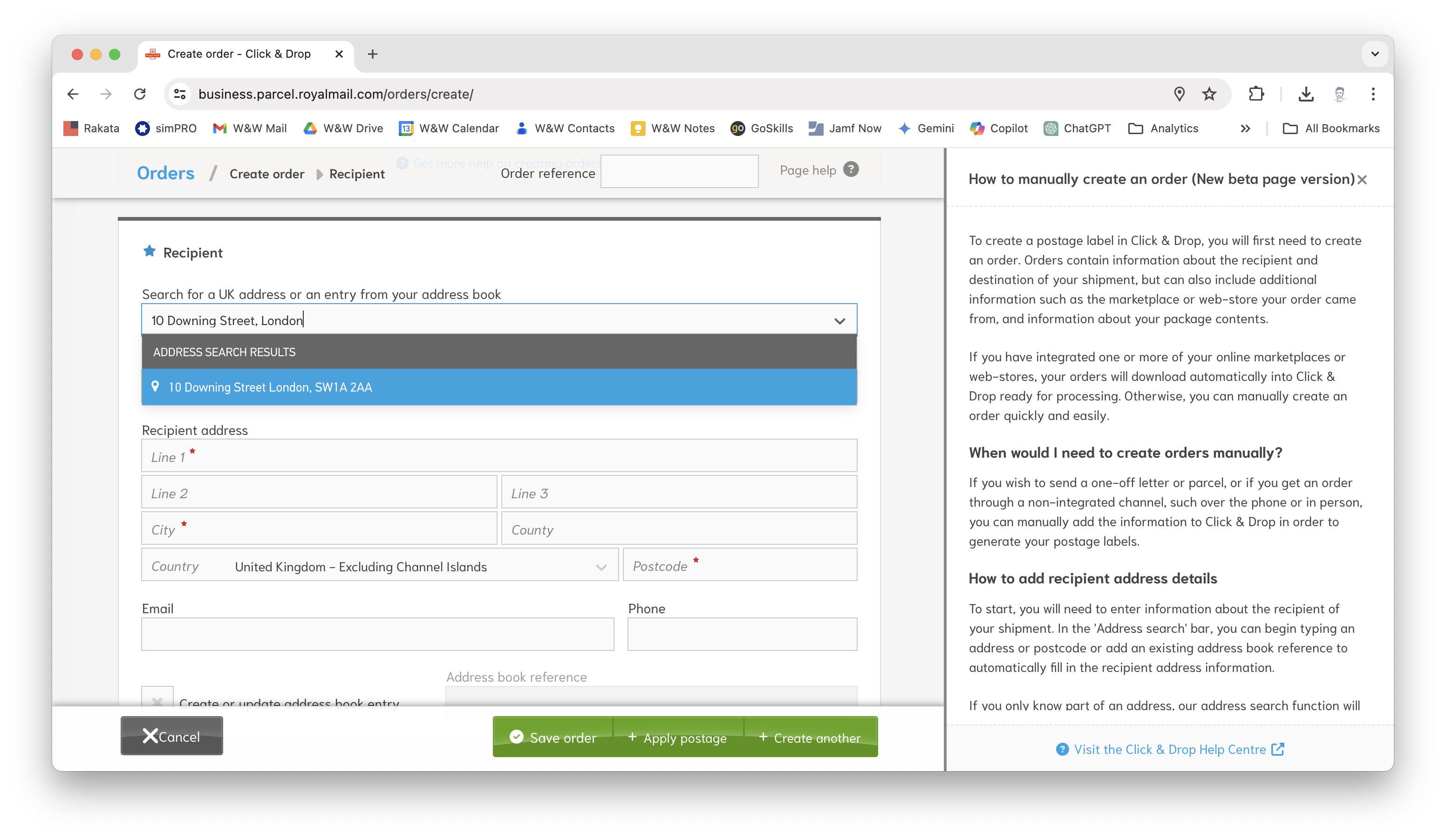
- Whichever option you choose, click the address in the dropdown, and you should find that all the fields are automatically completed for you.
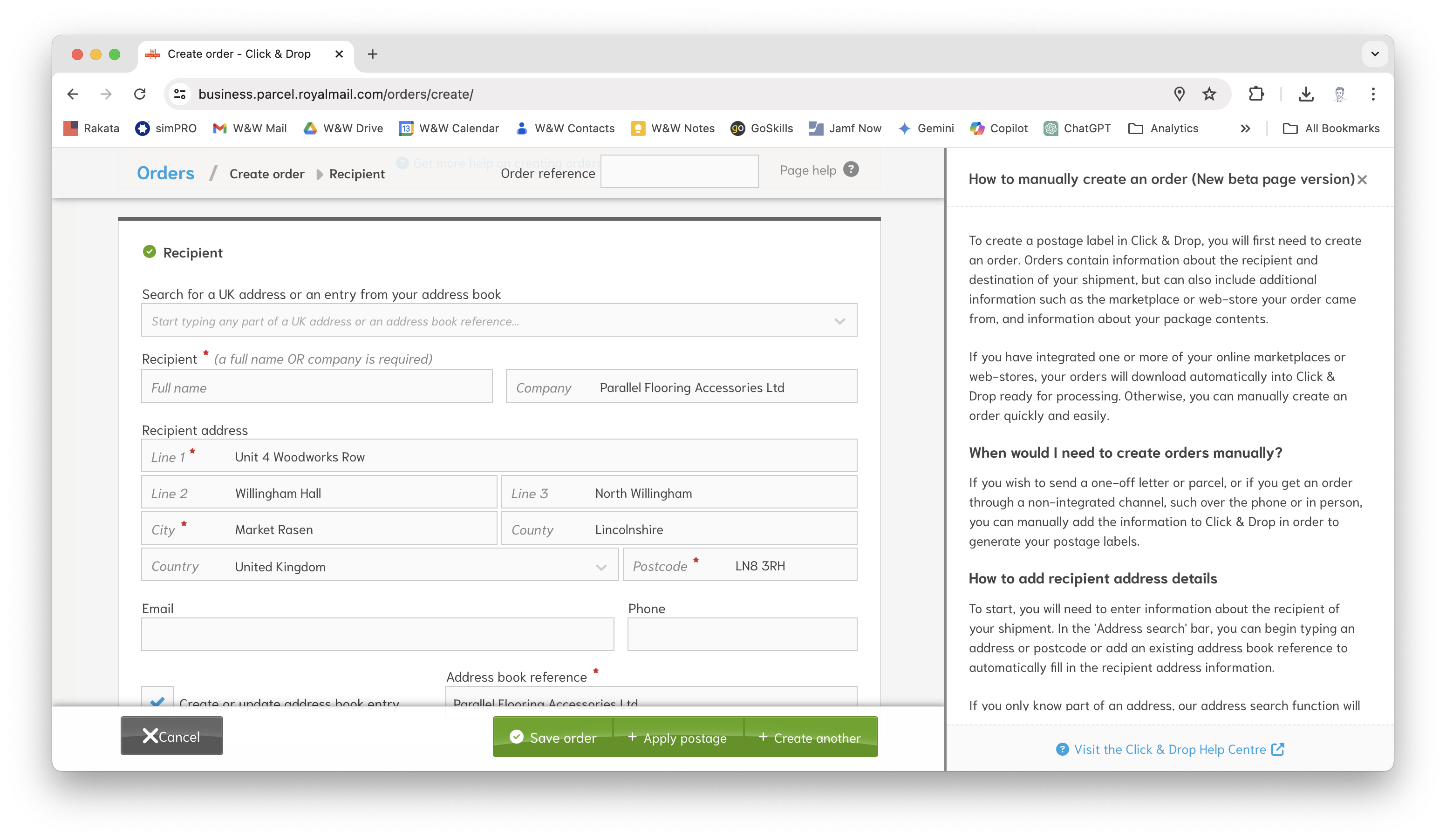
- Next, scroll down to the section called Order details.
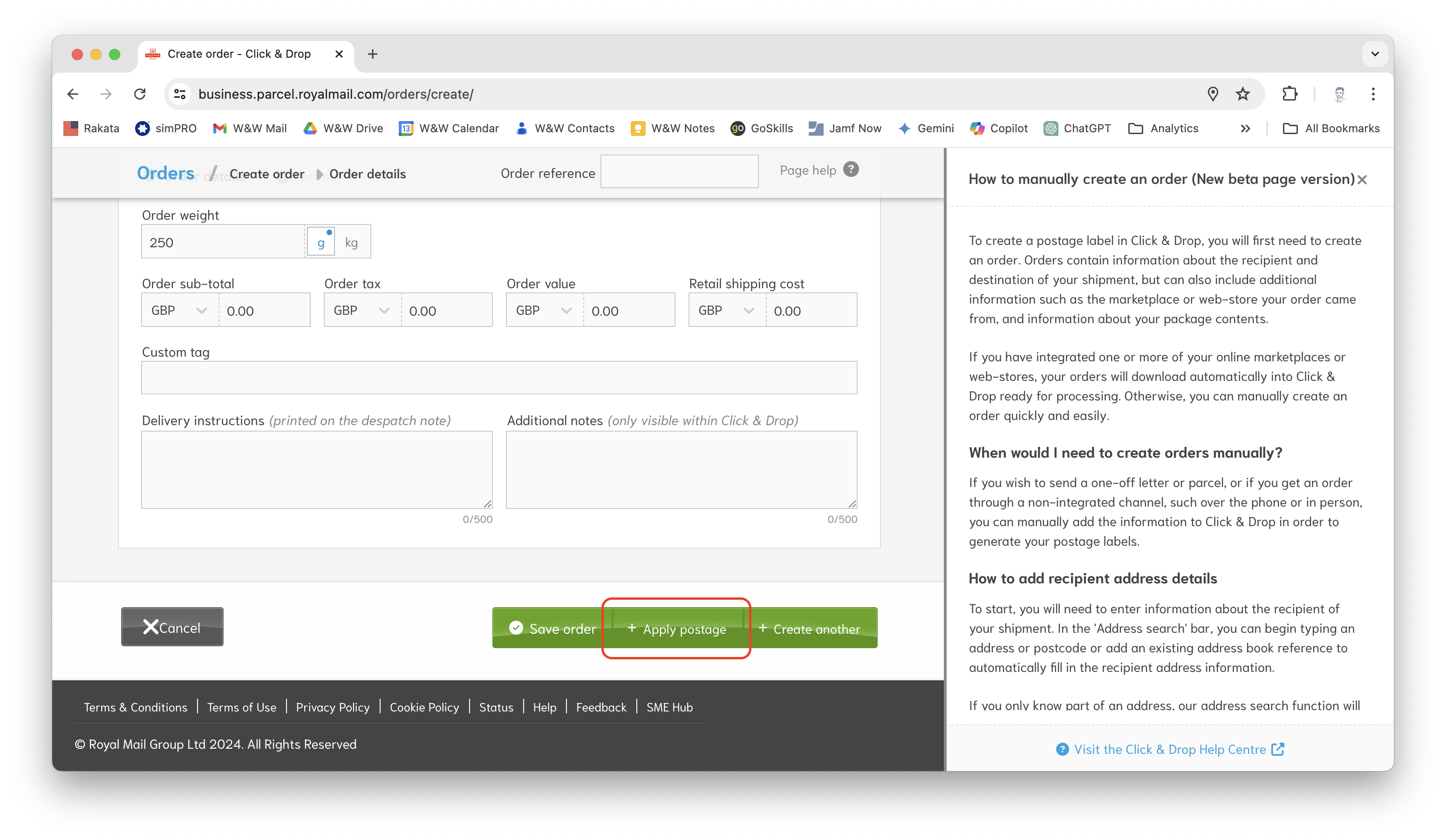
- Enter the Order weight – this doesn’t need to be too accurate, as long as you’re pretty close, you should be fine.

- When you’ve filled in all the necessary details, click Apply postage.
- A page will load, asking you to select the package size. This will usually be automatically selected depending on the weight you entered earlier. Make sure you pick the right size, as the Post Office may refuse to deliver a parcel with incorrect postage.
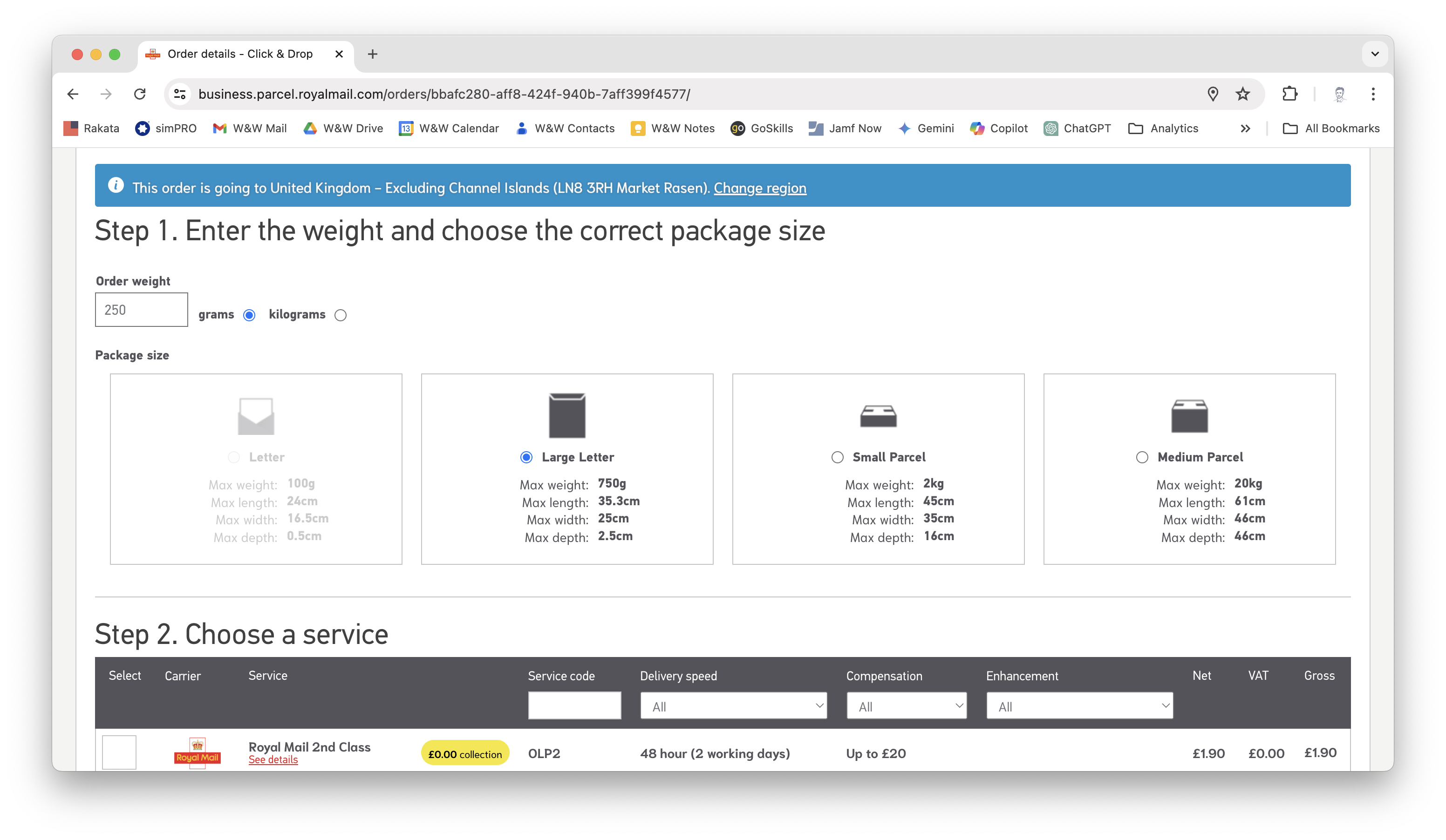
- Next, scroll down and select the Service you want to use. Try to choose one that is appropriate for your item and its urgency. In most cases, Royal Mail 2nd Class will be fine.
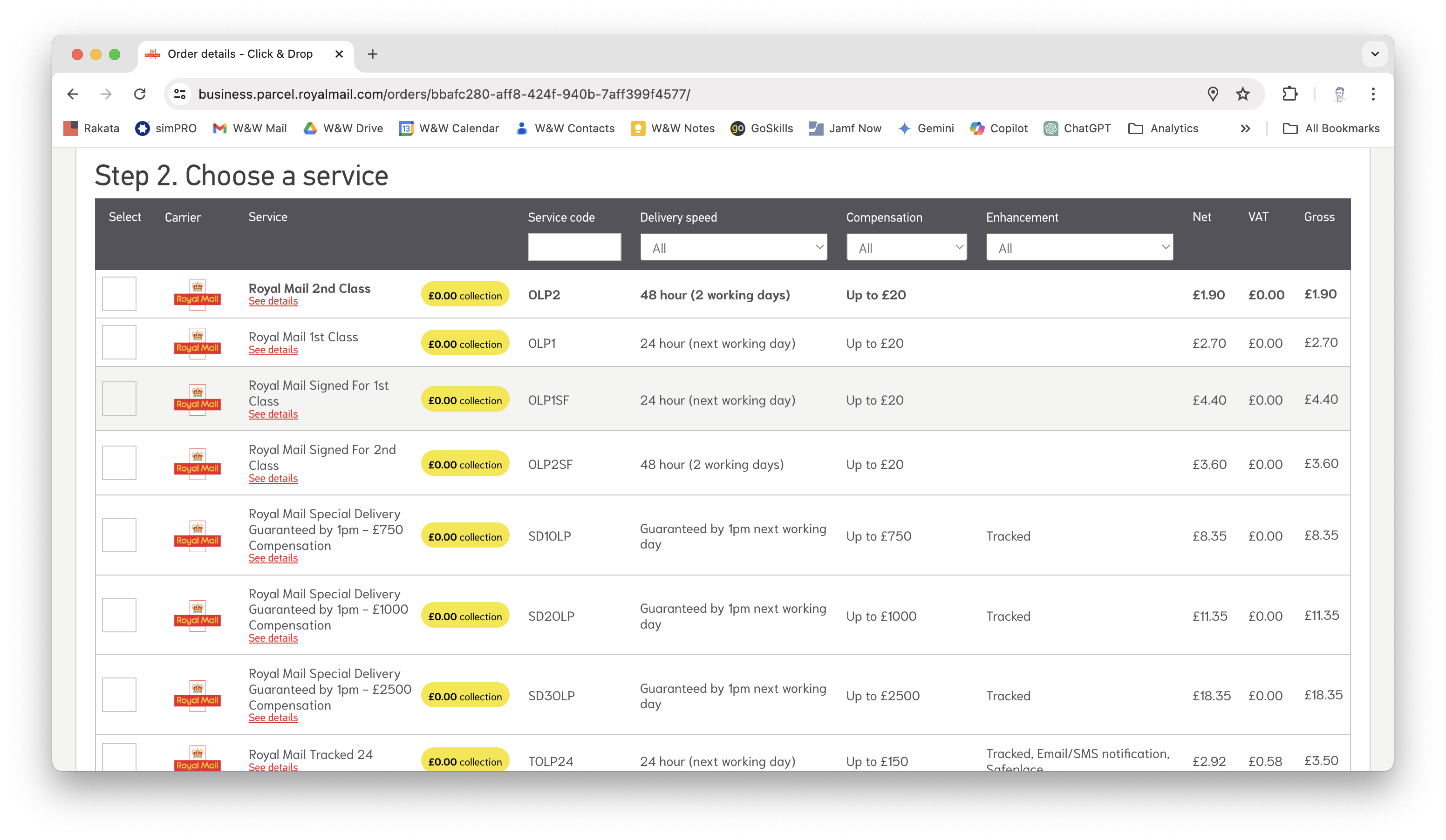
- When you’ve selected your postage, scroll down to the bottom of the page and click Apply, pay & generate labels.
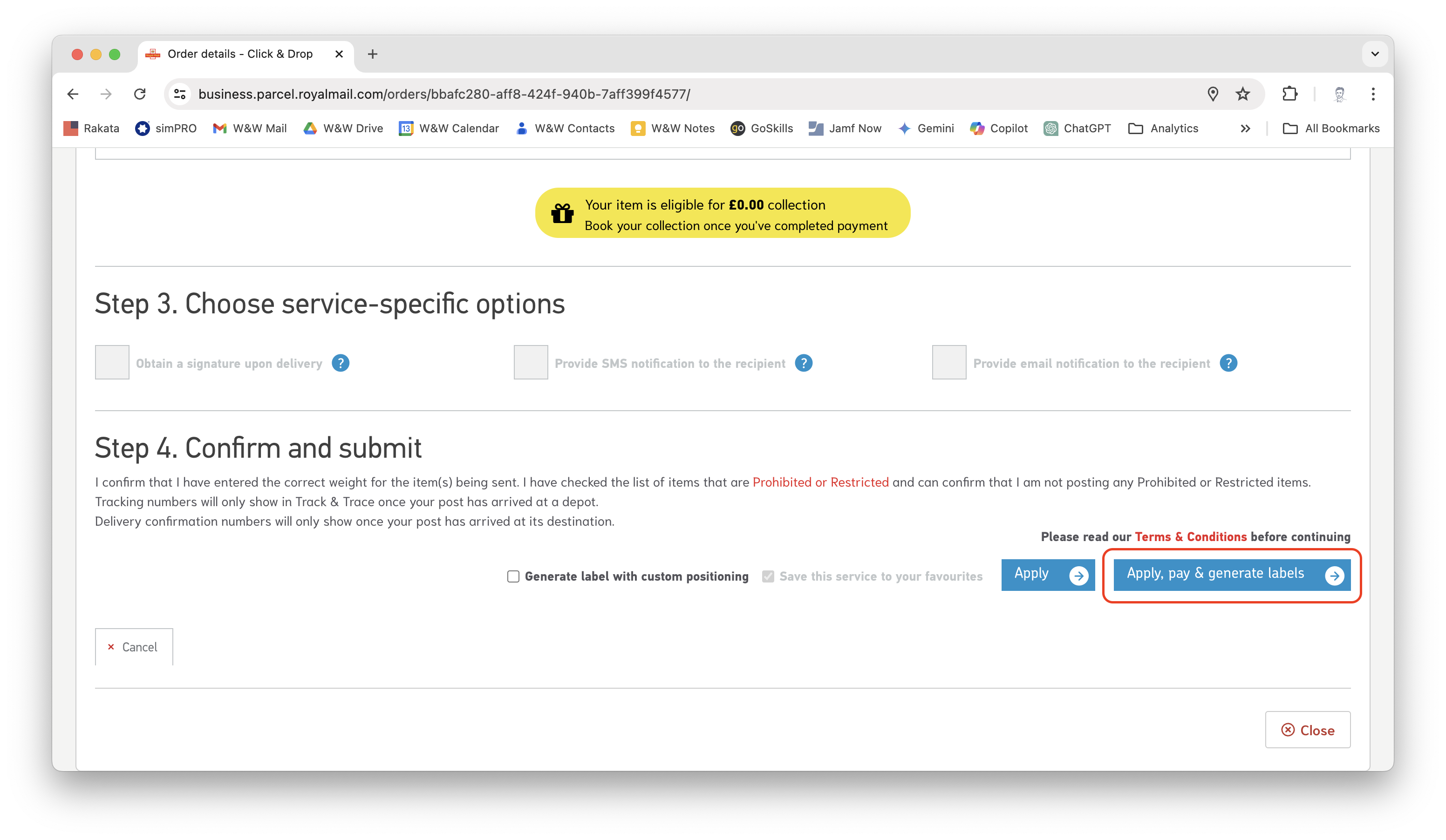
- Click the box to confirm that you are not sending any restricted items, and then click Pay with debit or credit card.
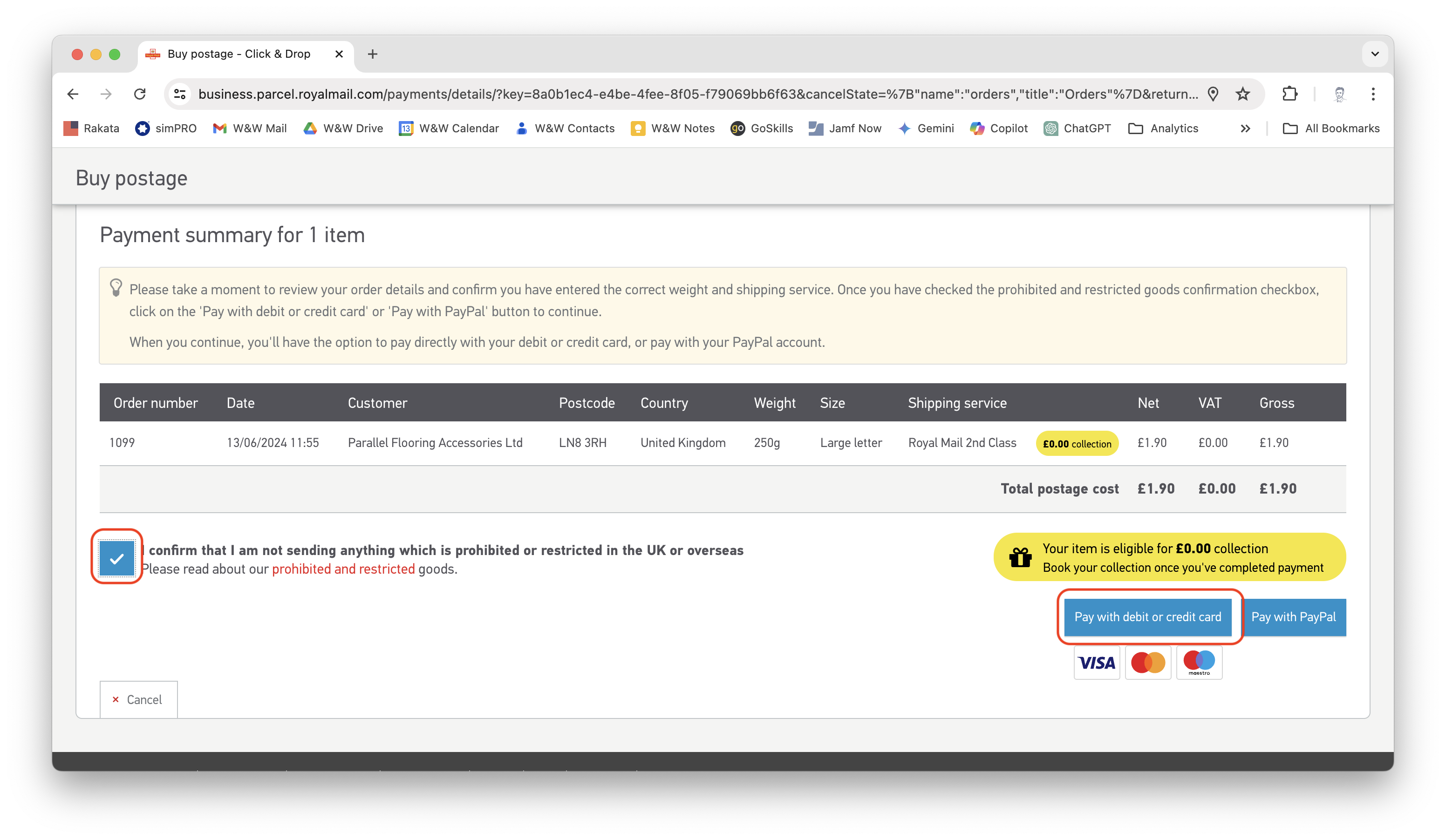
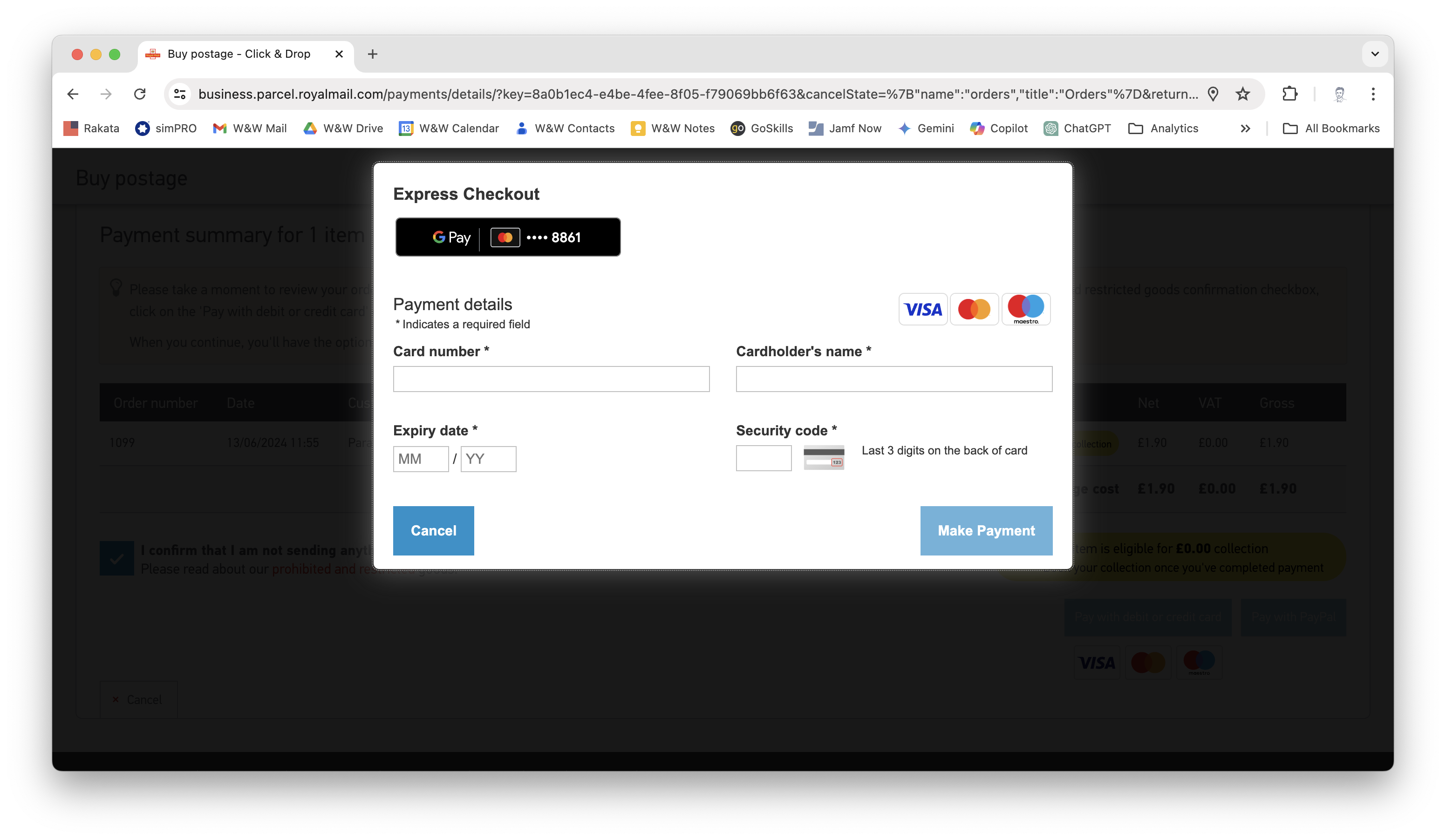
- A page will load asking for card details. If you don’t have these to hand, speak with someone who has one.
- When the payment has gone through, the label will automatically download in PDF format. You can now open this in your PDF viewer (e.g., Preview if using macOS) and print it to the relevant printer.
- When the label has printed, stick it to the parcel and take it to the Post Office to be dropped off. If you’re not using a tracked service, you can usually drop the parcel off at the parcel box outside Waitrose in Twickenham.
Parcel Monkey
Section titled “Parcel Monkey”Log In
Section titled “Log In”- Open your web browser and go to
https://www.parcelmonkey.co.uk/.
Use the following credentials to log in:
- Username:
admin@wovenandoods.com - Password:
23Yorkstreet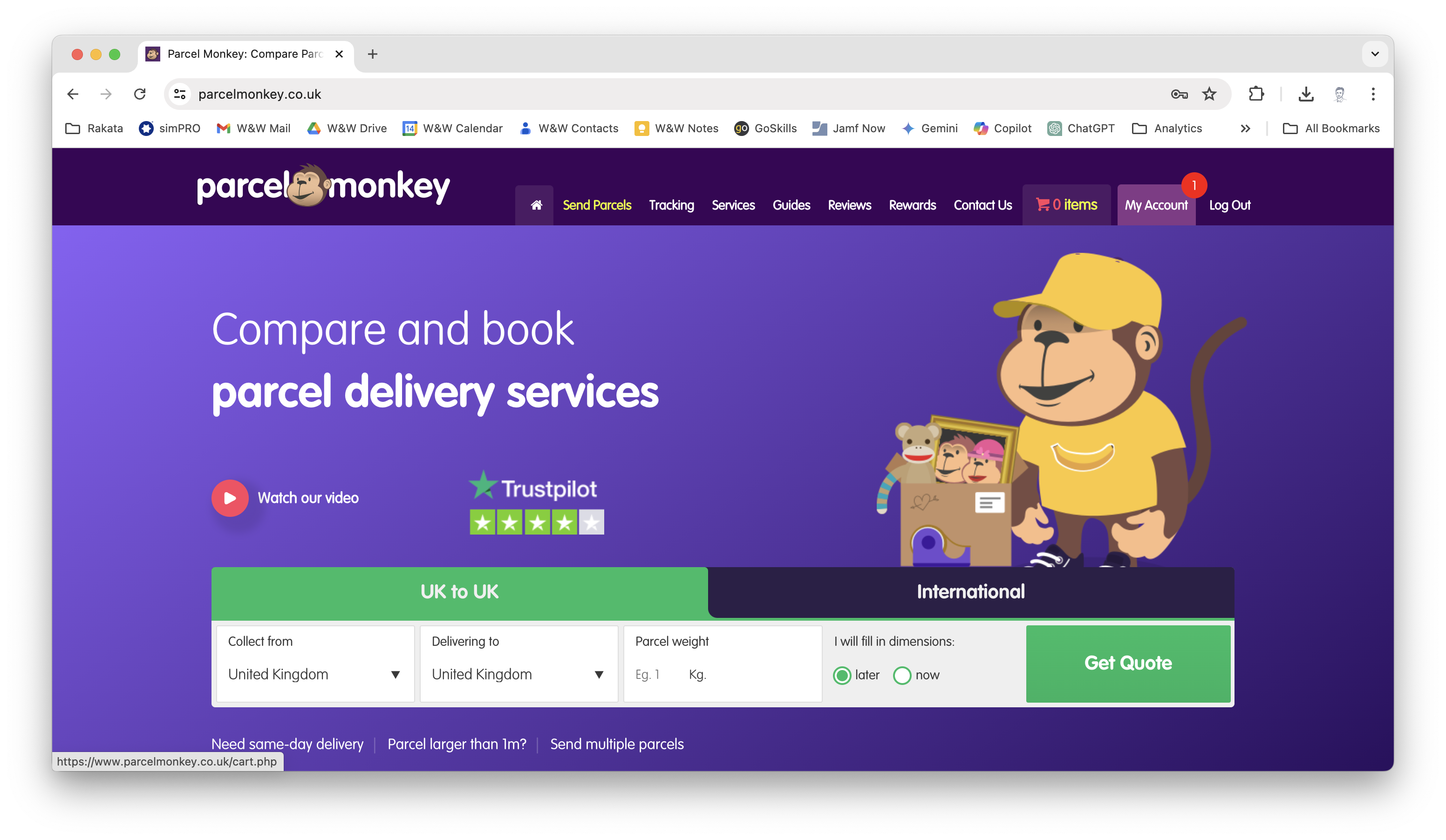
Enter Your Parcel Details
Section titled “Enter Your Parcel Details”- Fill in the parcel details:
- Collect from: Unless you’re arranging postage on behalf of someone sending something from outside the country, this will nearly always be United Kingdom.
- Delivering to: The country where you want to send the parcel.
- Parcel weight: You don’t have to be exact, but try to make an accurate guess. For smaller items, there are digital scales in the kitchen in Twickenham.
- I will fill in the dimensions: It’s usually best to measure your item and enter the dimensions now to ensure you get the most accurate quotes in the next step. Otherwise, you can click later and carry on for now.
- When you have filled in all the details, click Get Quote.
Your Comparison Results
Section titled “Your Comparison Results”- You will be shown a list of quotes from various companies for delivering your parcel.
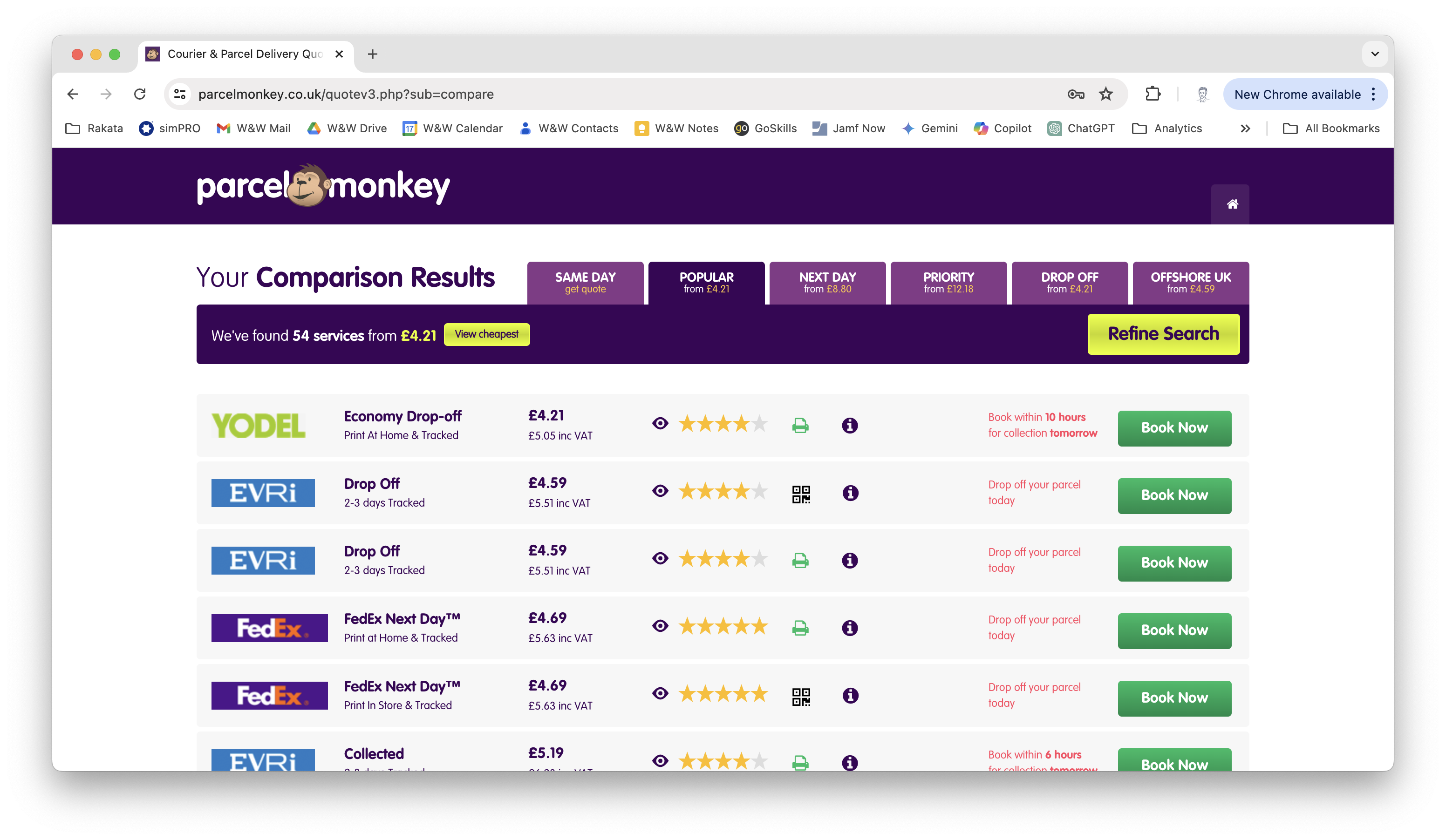
- Scroll through the list to find an option that best suits your needs. The default view is Popular; however, you can see more options using the tabs at the top of the page.
- Consider the following:
- Timing: Does this item need to be delivered as soon as possible, or is it less urgent? For time-critical matters, consider next-day or same-day options (see below for how to arrange same-day).
- Collection or drop off: Some couriers will collect the item from the showroom, meaning you don’t need to take it to a parcel shop. This can be convenient when you are busy, but you’ll only be provided a broad time window for their arrival. Make sure that it falls within showroom opening hours. Some priority deliveries will require collection anytime from 7 am, so you may need to ensure someone will be in to hand it over.
- Print your own label: Most cheaper options require you to print your own label.
- Rating: Check the ratings of the options to ensure they suit your needs. You can click the eye icon to read customer reviews.
- Price: Try to choose something that is reasonable for your needs. If it doesn’t need to arrive for a week or so, don’t pay extra for next-day.
- When you’ve decided which option is best for your needs, click the Book Now button next to it.
Book Your Delivery
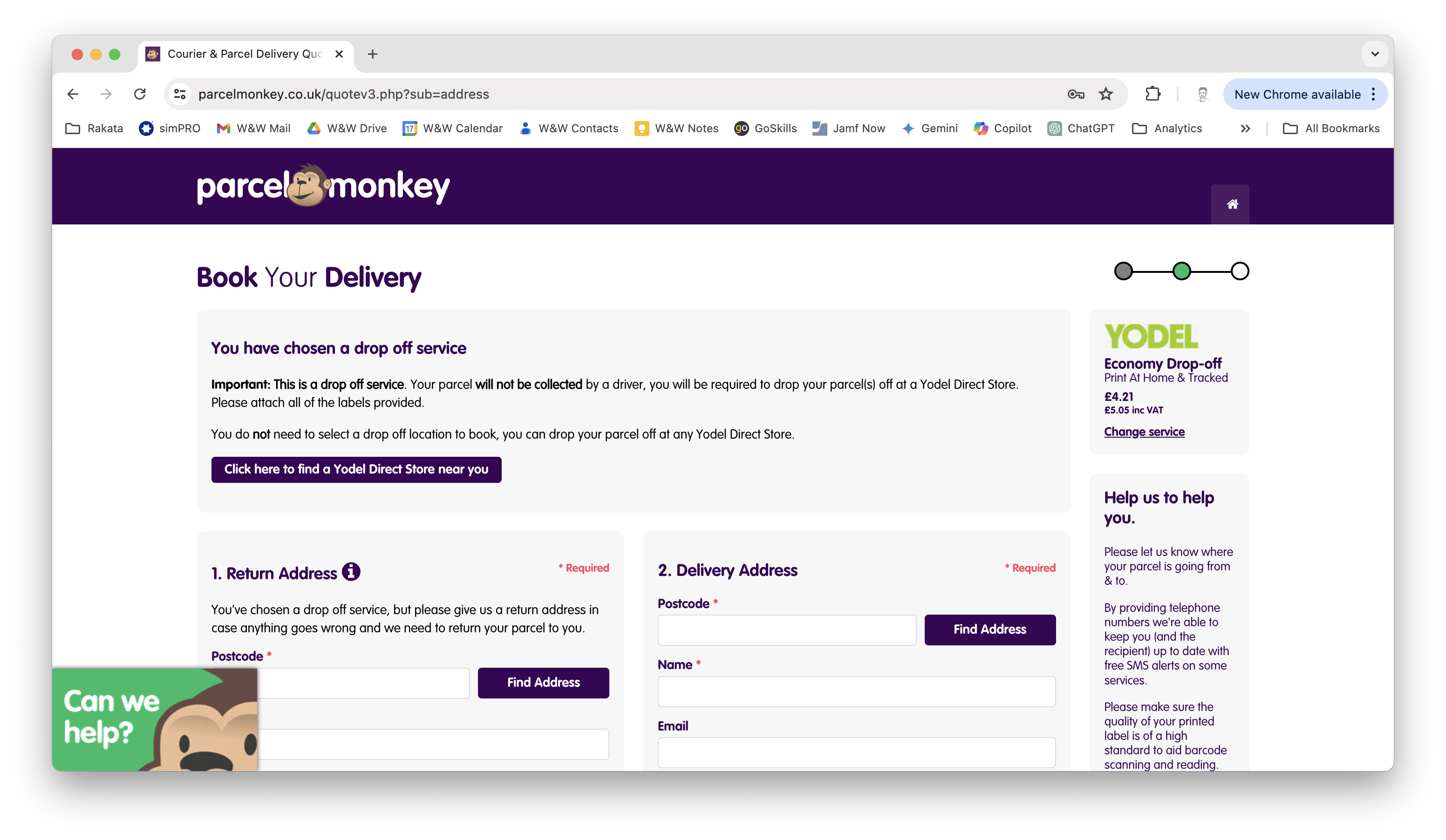
Section titled “Book Your Delivery”- The following page will allow you to fill in the return and delivery address details for the parcel and confirm the terms of the service you’ve selected.
Return Address
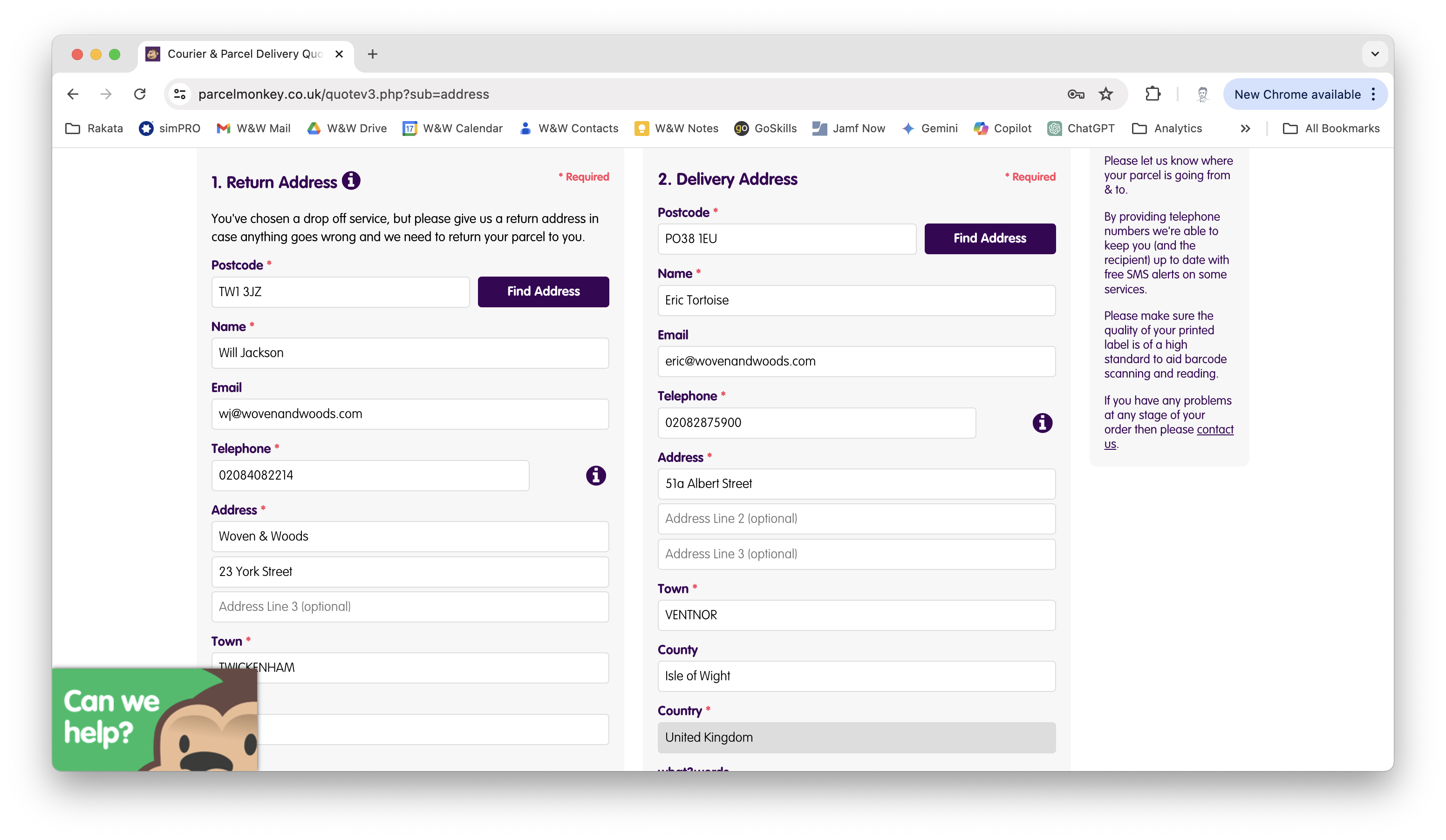
Section titled “Return Address”- To find an address, enter the postcode and click the Find Address button. Then select the address from the dropdown list.
- Next, enter your details for the return address. It’s important you get this correct, as this is where the parcel will be returned if there are any issues with delivery.
Delivery Address
Section titled “Delivery Address”- Do the same as above to find the delivery address, and enter the recipient’s details. They will receive a notification email, and the telephone number will be used to contact them if there is any trouble making the delivery, so make sure they are correct. You will not be allowed to continue until all this information has been entered.
Additional Information
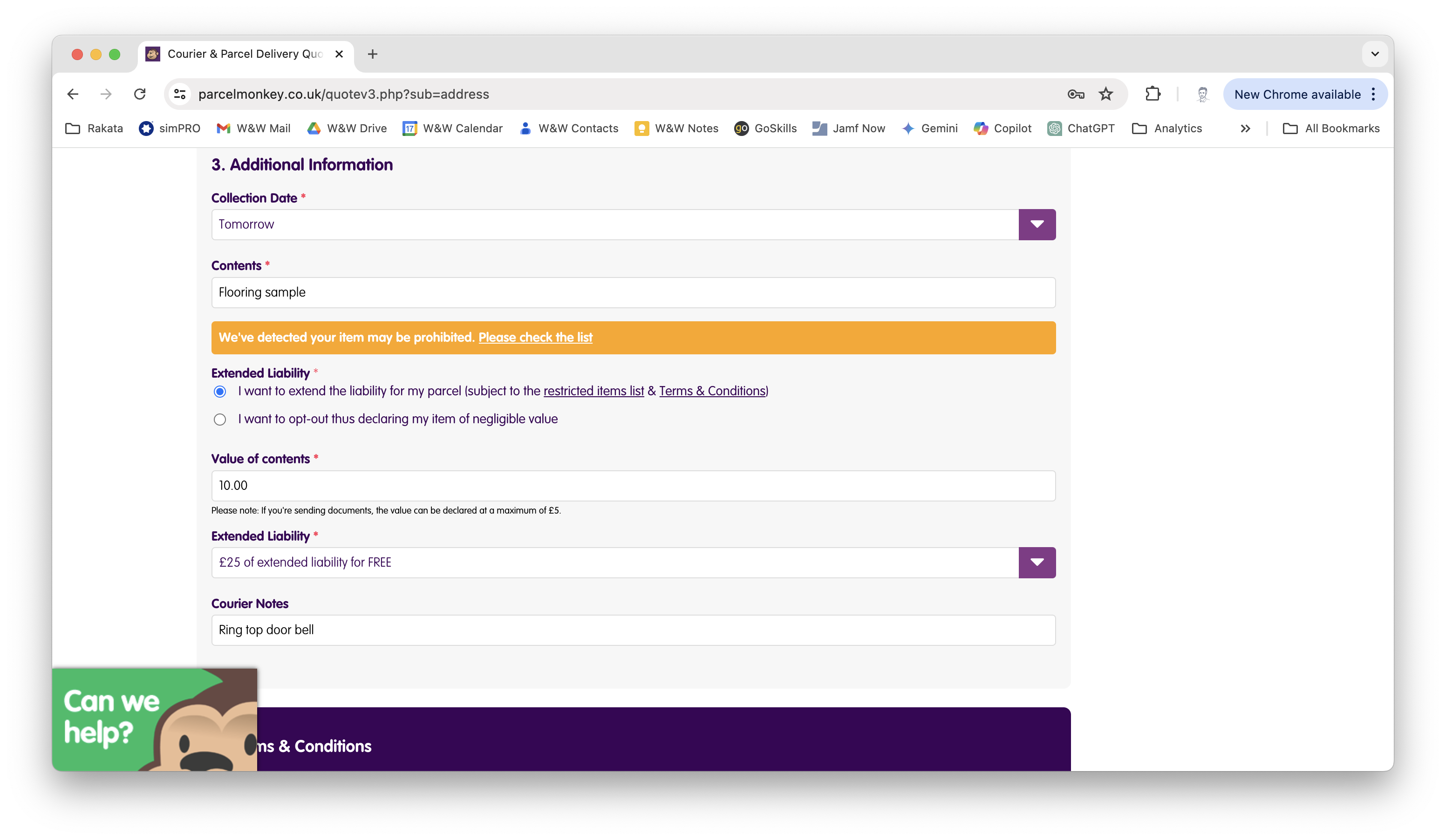
Section titled “Additional Information”- Scroll to the bottom of the page to the Additional Information section and fill in the boxes:
- Collection Date: If you’ve opted for collection rather than drop-off, this is where you will be able to request a collection date. Note that you can usually only choose a day, but not a time – you’ll instead be given a broad time window.
- Contents: Write a brief description of what you’re sending. If the system detects that you might be sending a prohibited item, a warning will come up with a link to the prohibited items list. Most of what we would send will be fine.
- Value of contents: If you know the value of the item, put it here. Otherwise, try to make a good guess. If we need to make a claim for compensation, this is the figure they will use. If all you are sending is a sample, you can put £0.
- Extended Liability: If you have selected a service that provides compensation, you can amend the amount here.
- Courier Notes: Enter anything else you think might be helpful to the courier here, e.g., if the property is hard to find or on a private estate.
Terms & Conditions
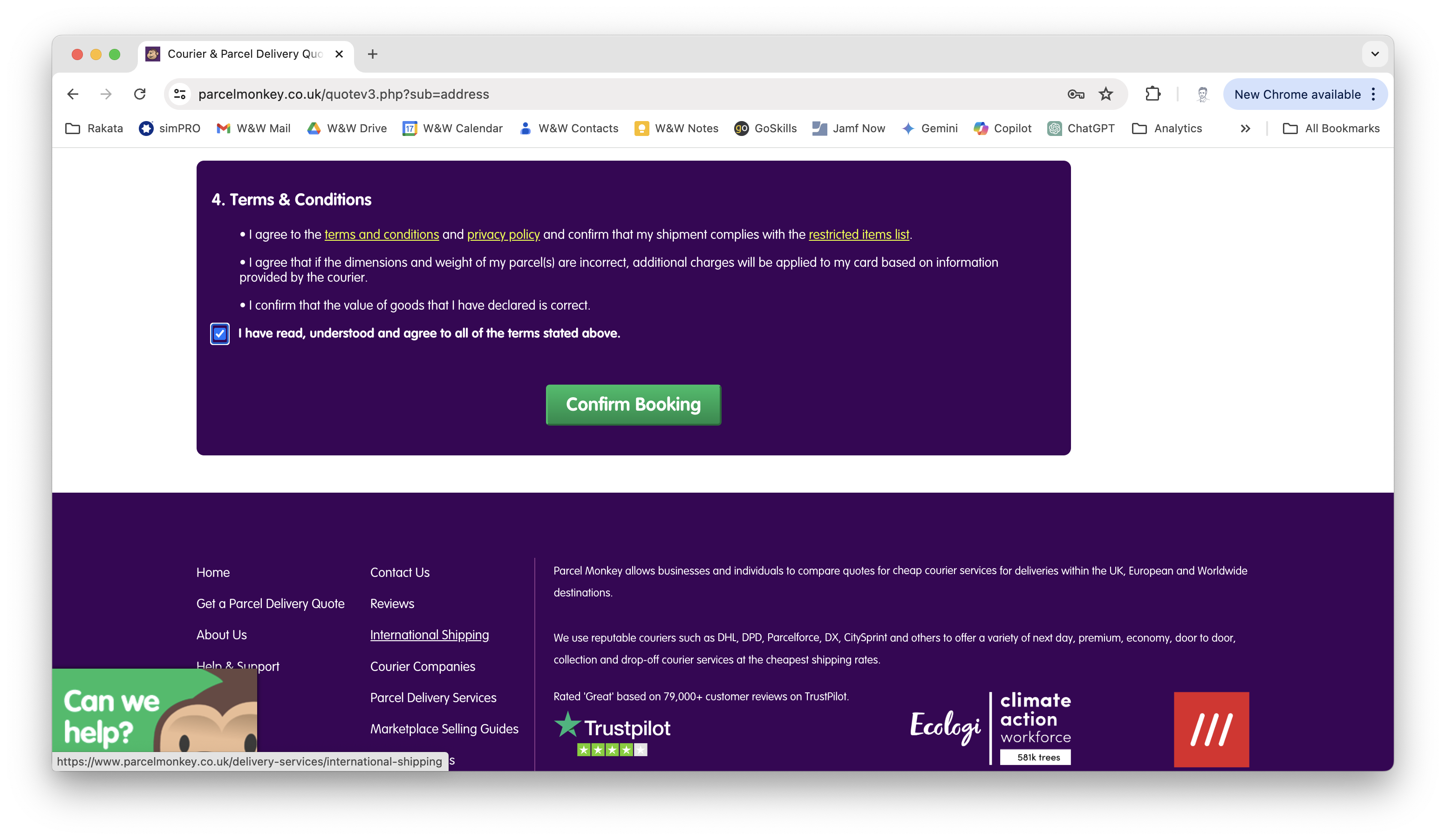
Section titled “Terms & Conditions”- Finally, check the box to agree with the terms and conditions and click Confirm Booking.
Same Day Quote
Section titled “Same Day Quote”- To get a same-day quote, open a web browser and go to
https://www.parcelmonkey.co.uk/sameday.php.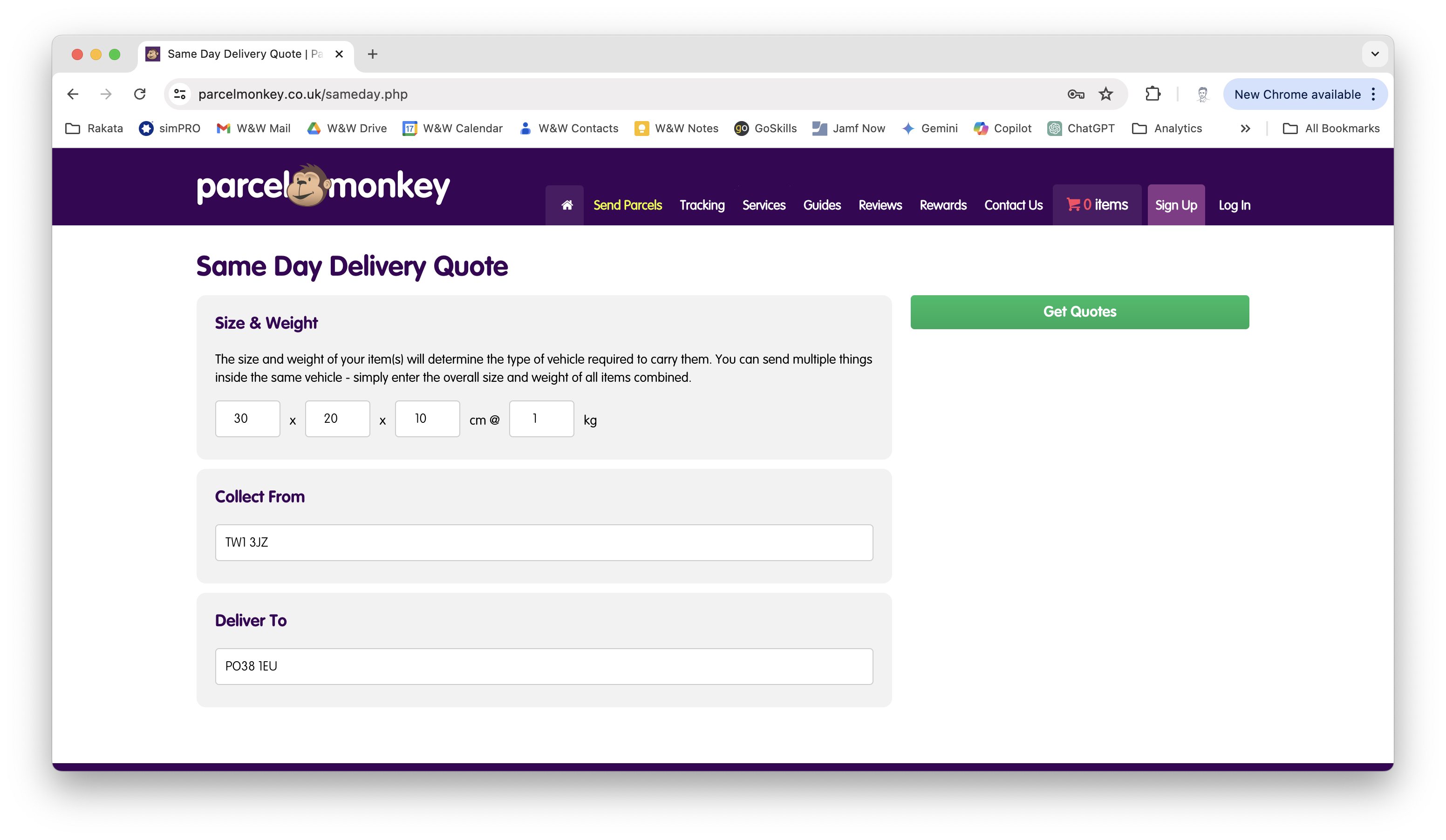
- Enter the details of your parcel and click Get Quotes, and you will be shown a list of services and prices.
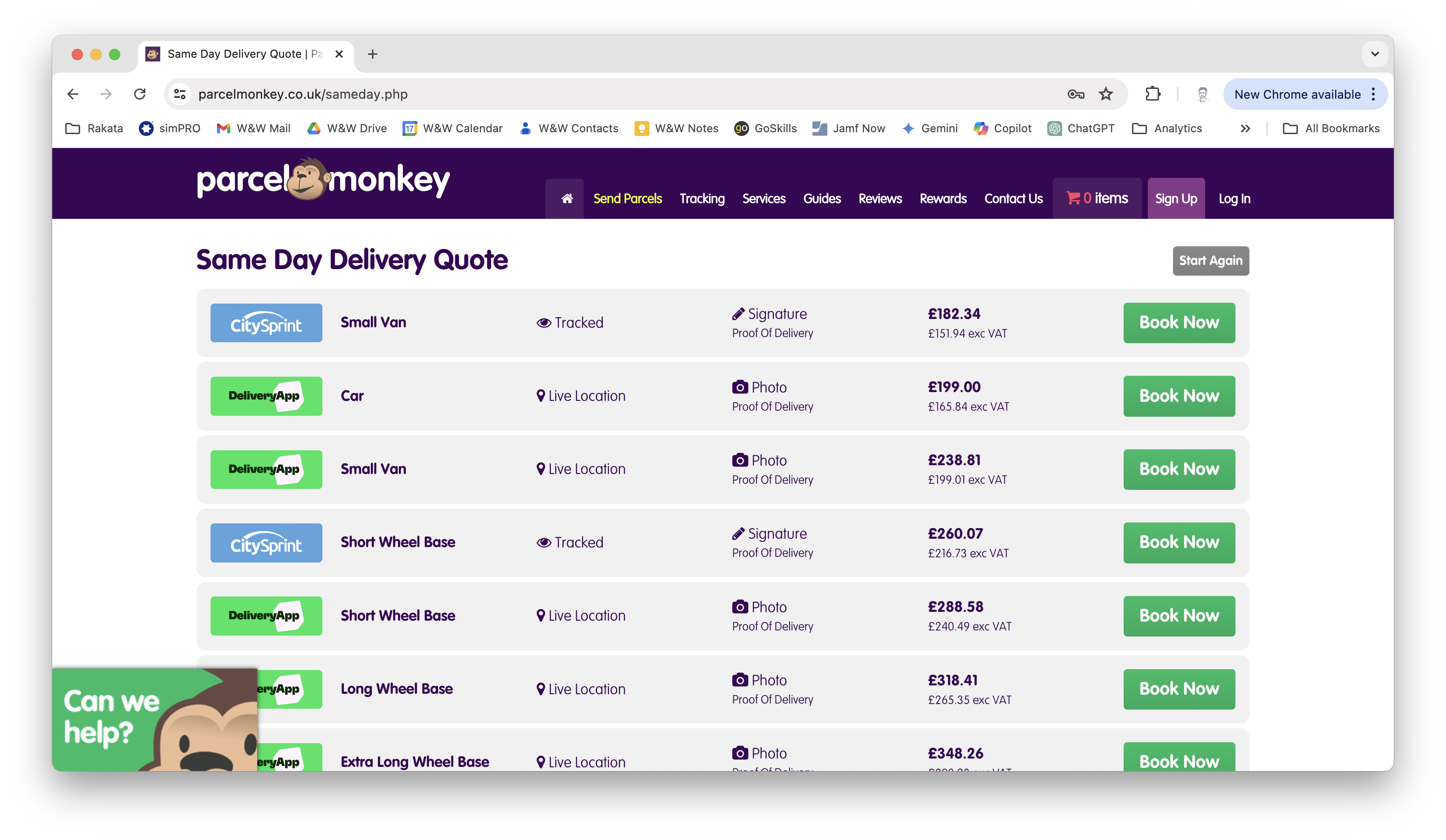
- To select a quote, click the Book Now button.