

How to Scan a Document
Scanning Documents on a Mobile Device
Section titled “Scanning Documents on a Mobile Device”The screenshots in this guide are for Android, but the process will be very similar for iOS.
- Open the Google Drive app, and make sure you’re signed into your Woven & Woods Google Workspace account (this will be the same as your email login).
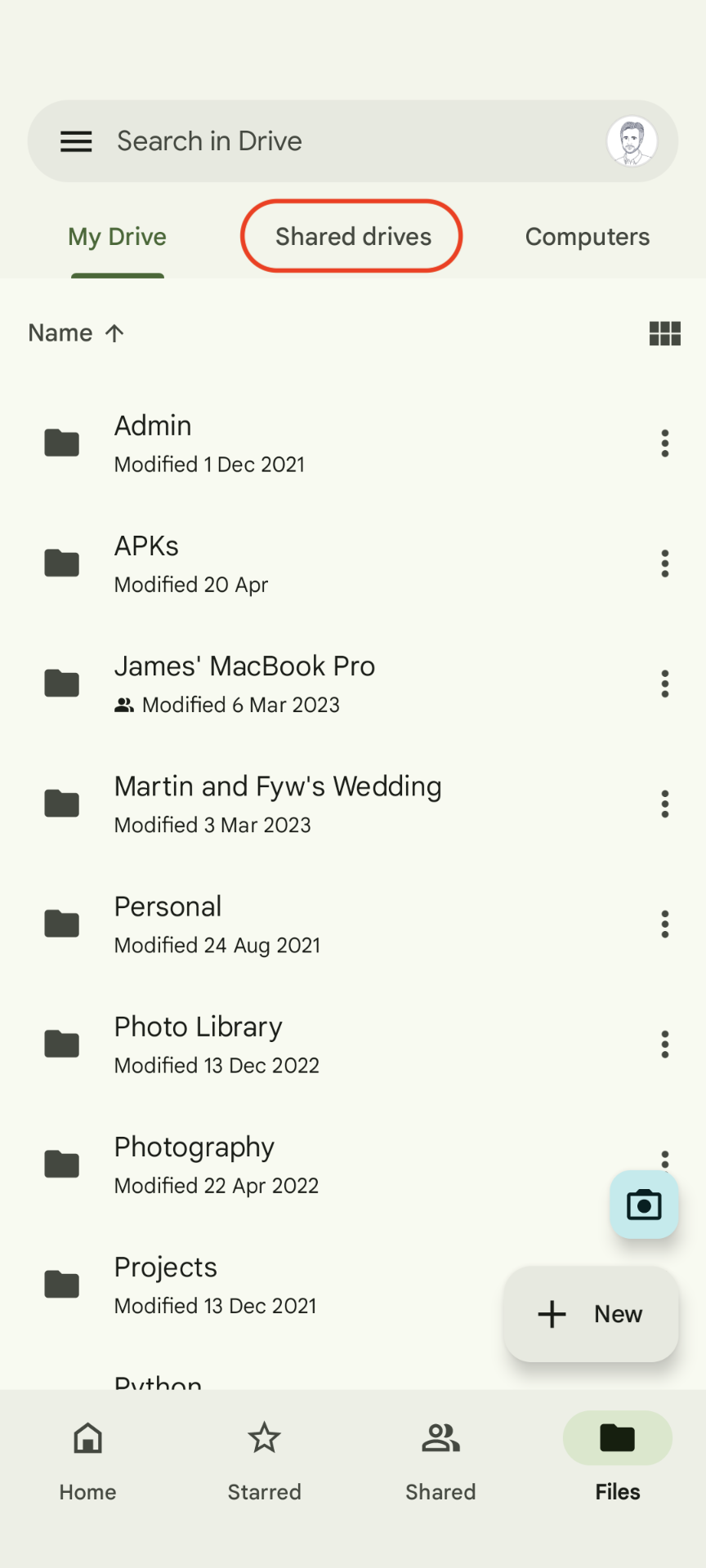
- Touch the Files tab at the bottom of the screen.
- Touch the Shared drives tab at the top of the screen.
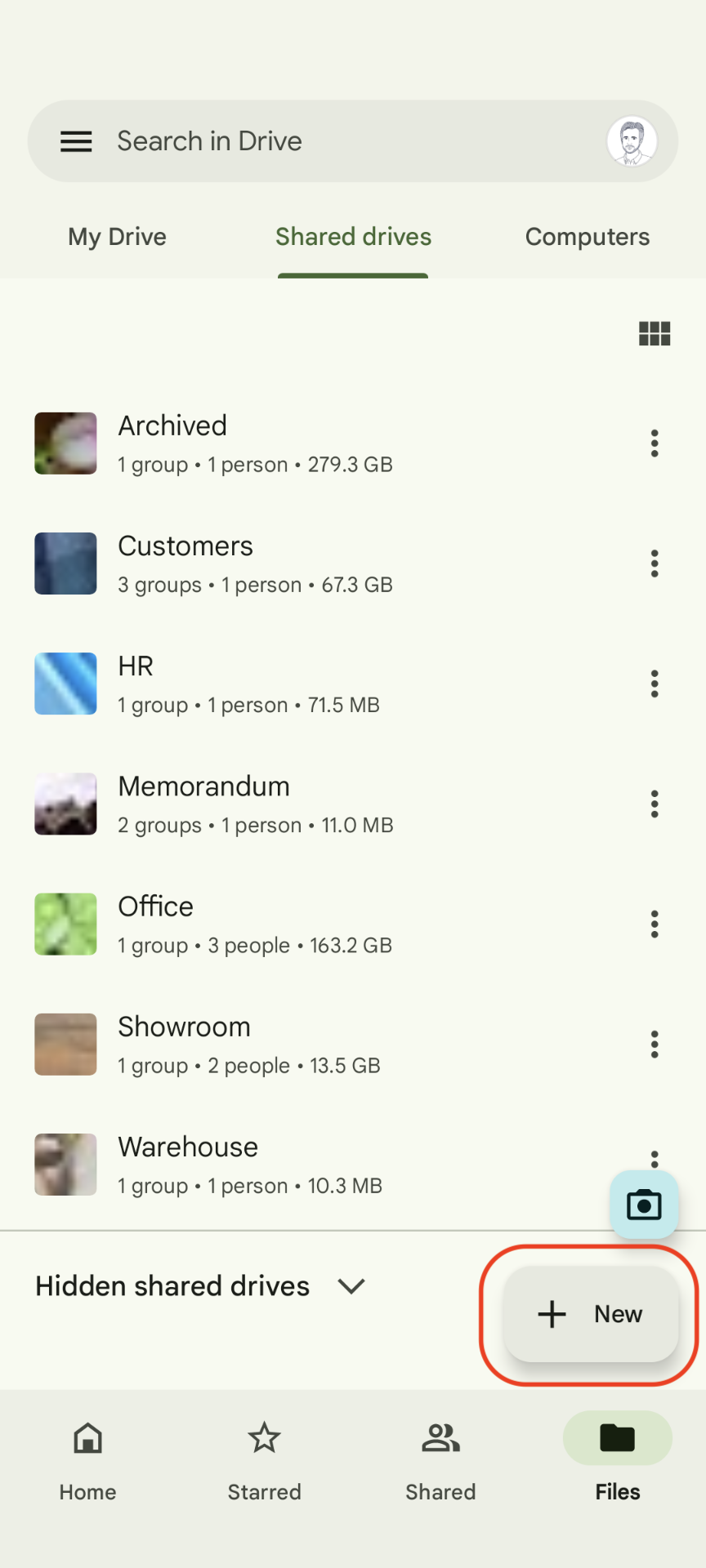
- Navigate to the folder where you want to save the scanned file.
- Touch the New button in the bottom right.
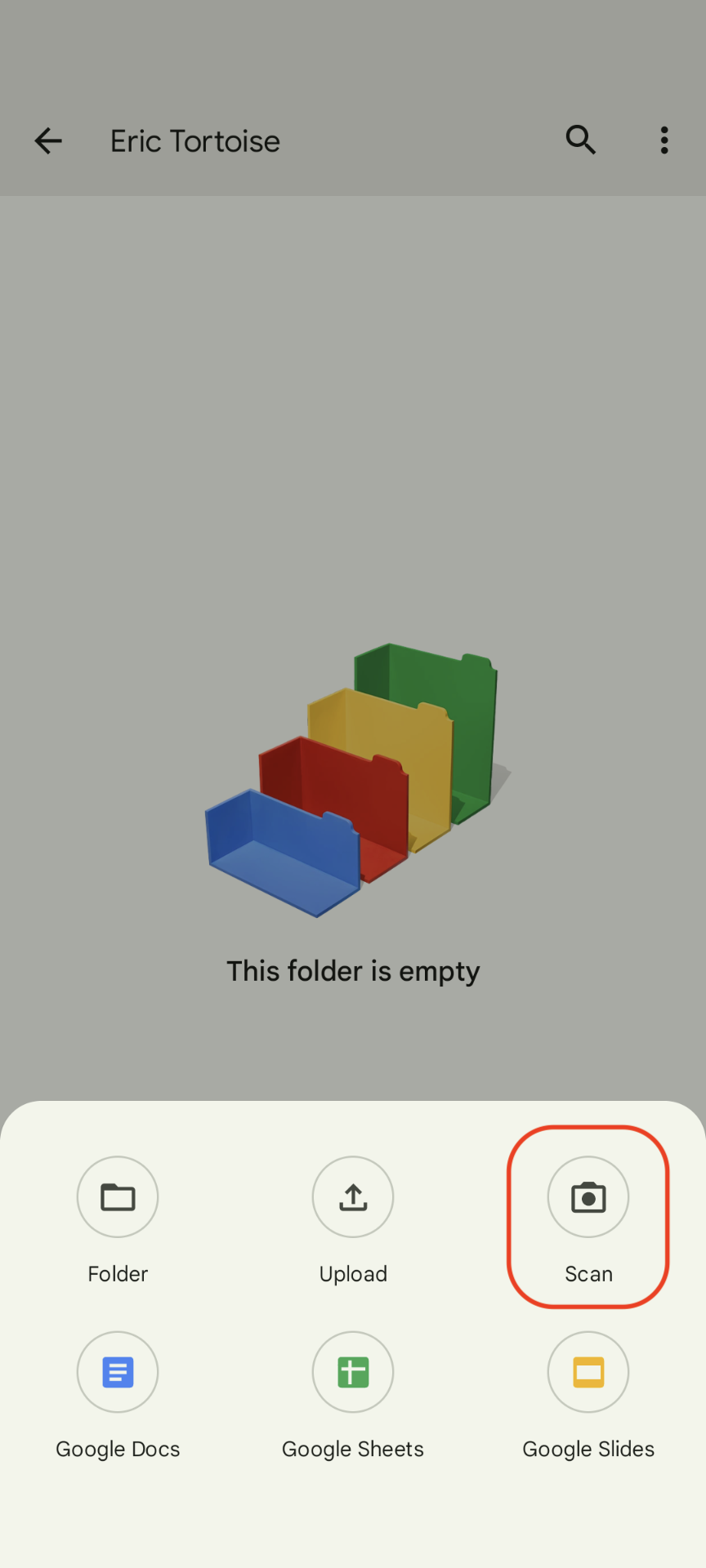
- Select Scan.
- If you get a warning about allowing Drive to take pictures, select While using the app.
Your camera will turn on, and a preview will be shown on the screen.
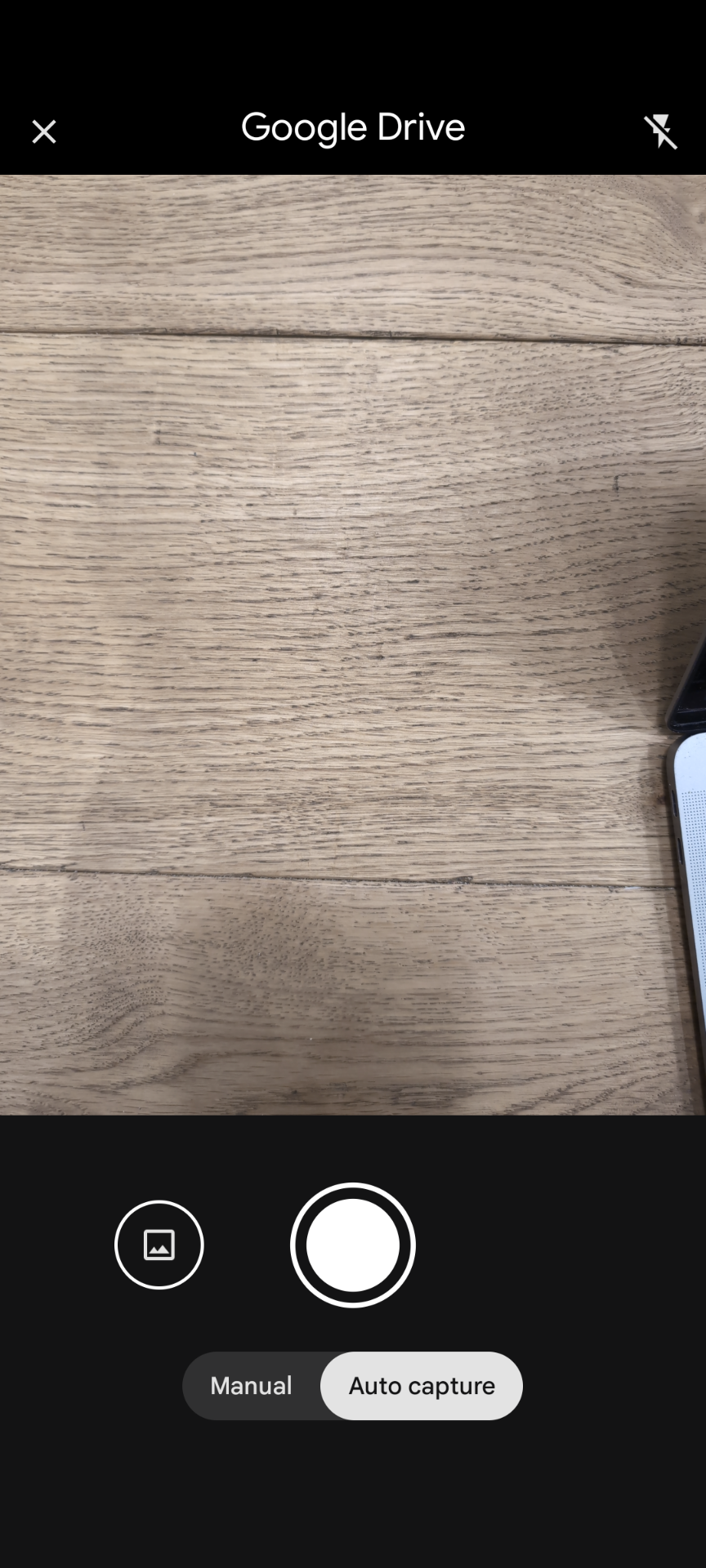
- Point the camera at the document, making sure all of it is in view and there’s sufficient light.
The app will automatically detect the document and highlight the edges in blue.
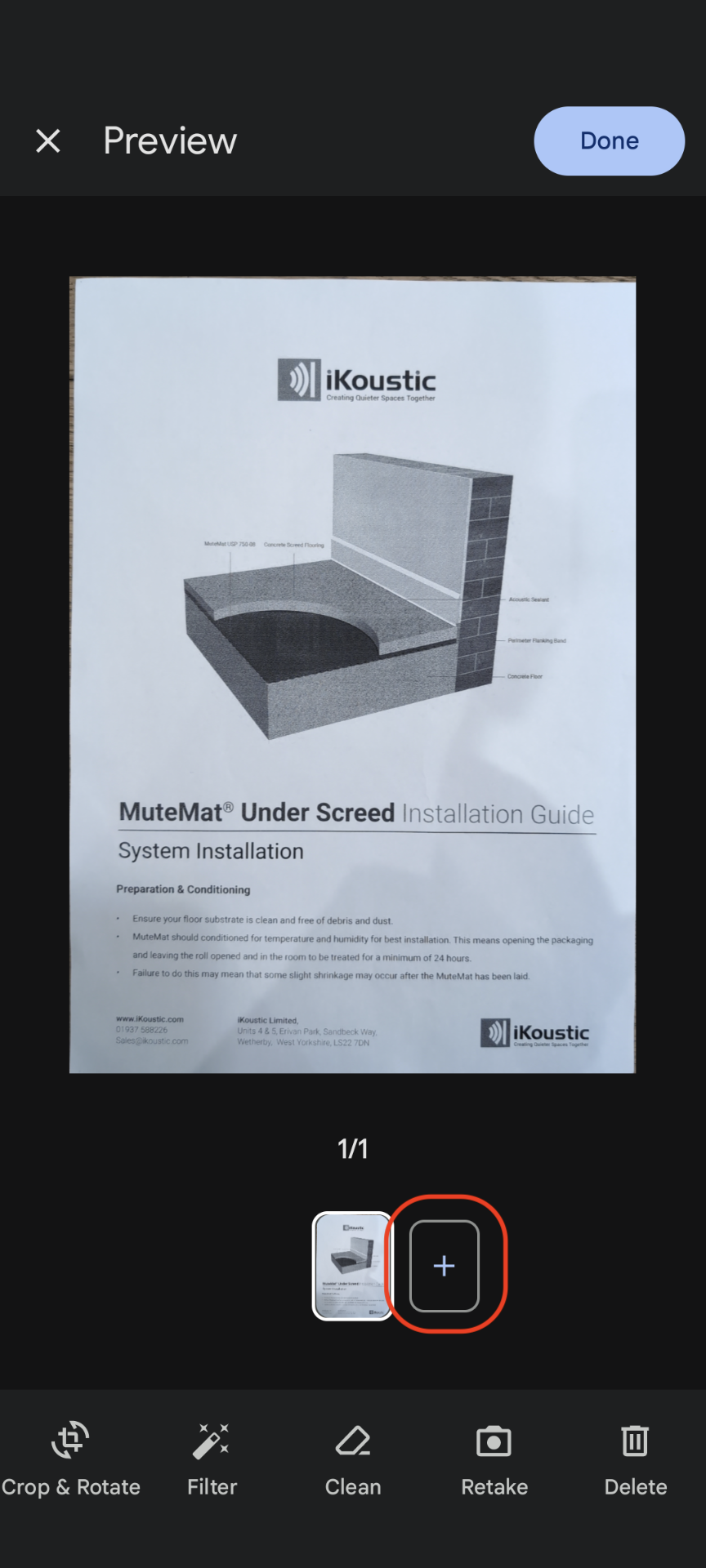
- Keep the camera steady for a few seconds while the document is scanned.
A preview of the scanned document will appear on the screen. If you need to scan additional pages, touch the + icon and repeat the above steps.
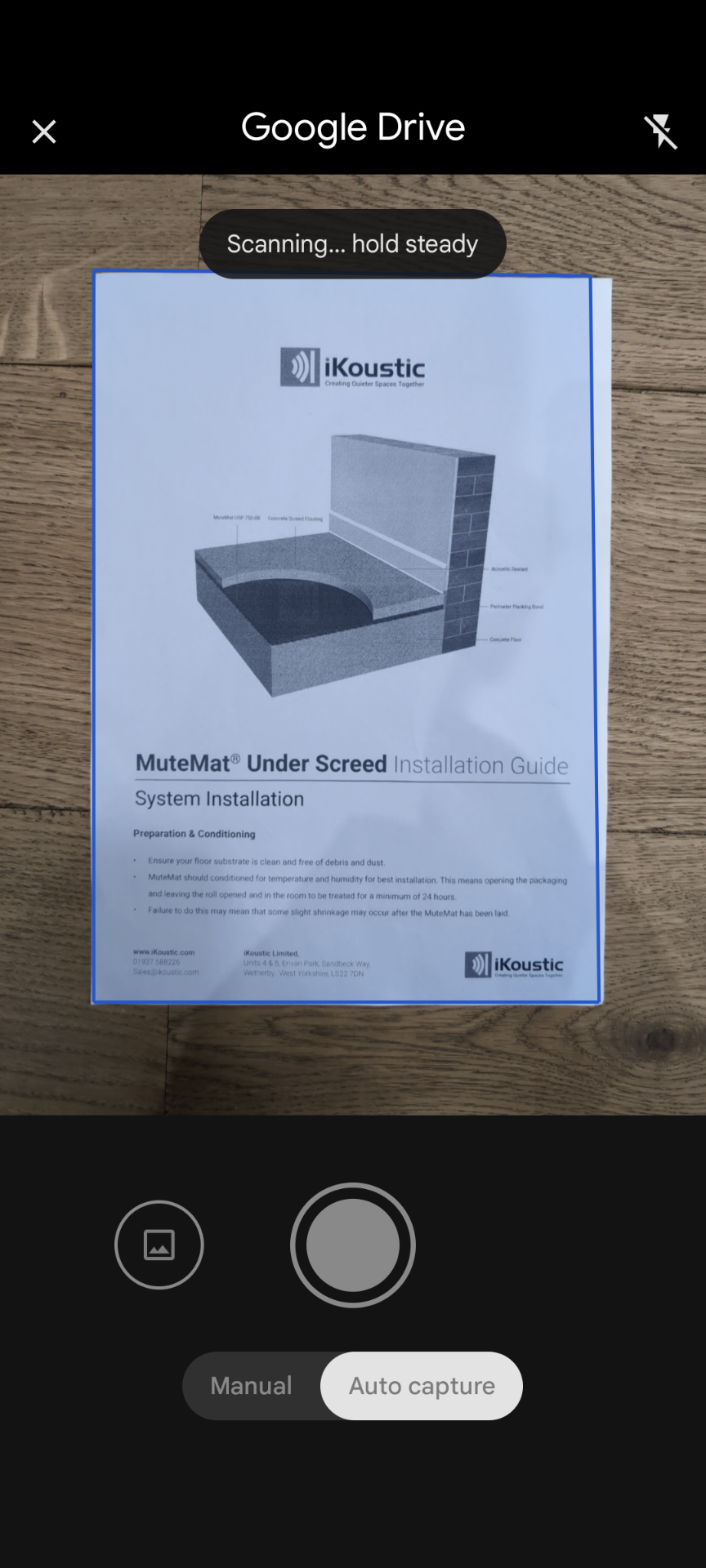
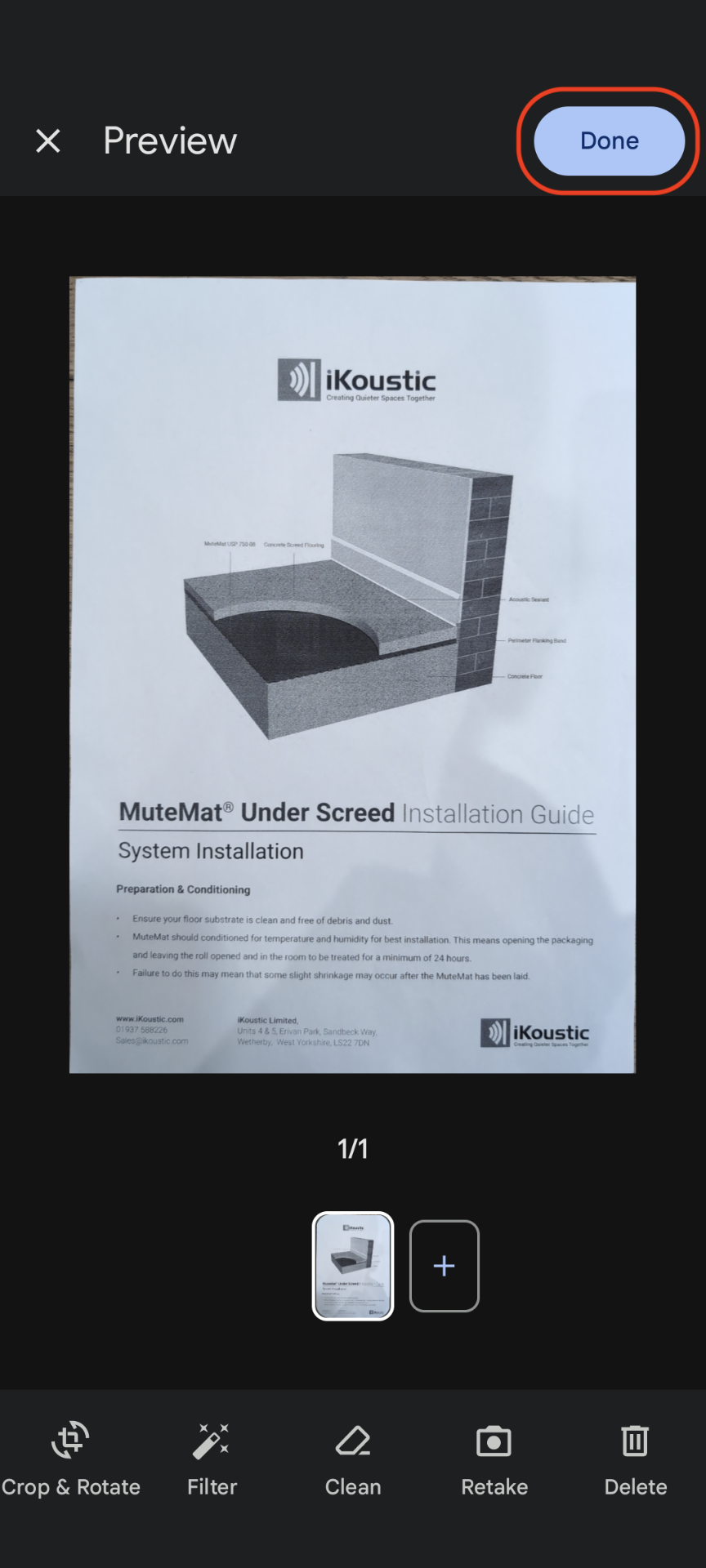
- When you’ve scanned all pages, select Done. Otherwise, press the x symbol in the top left to scan again.
- The app will ask where you want to save the scanned document. Your current folder will be automatically set as the save location, but you can change it here if it’s not right.
- Give the file an appropriate name (see W&W document naming conventions if you’re unsure). Remember that someone else may need to find this file in the future!
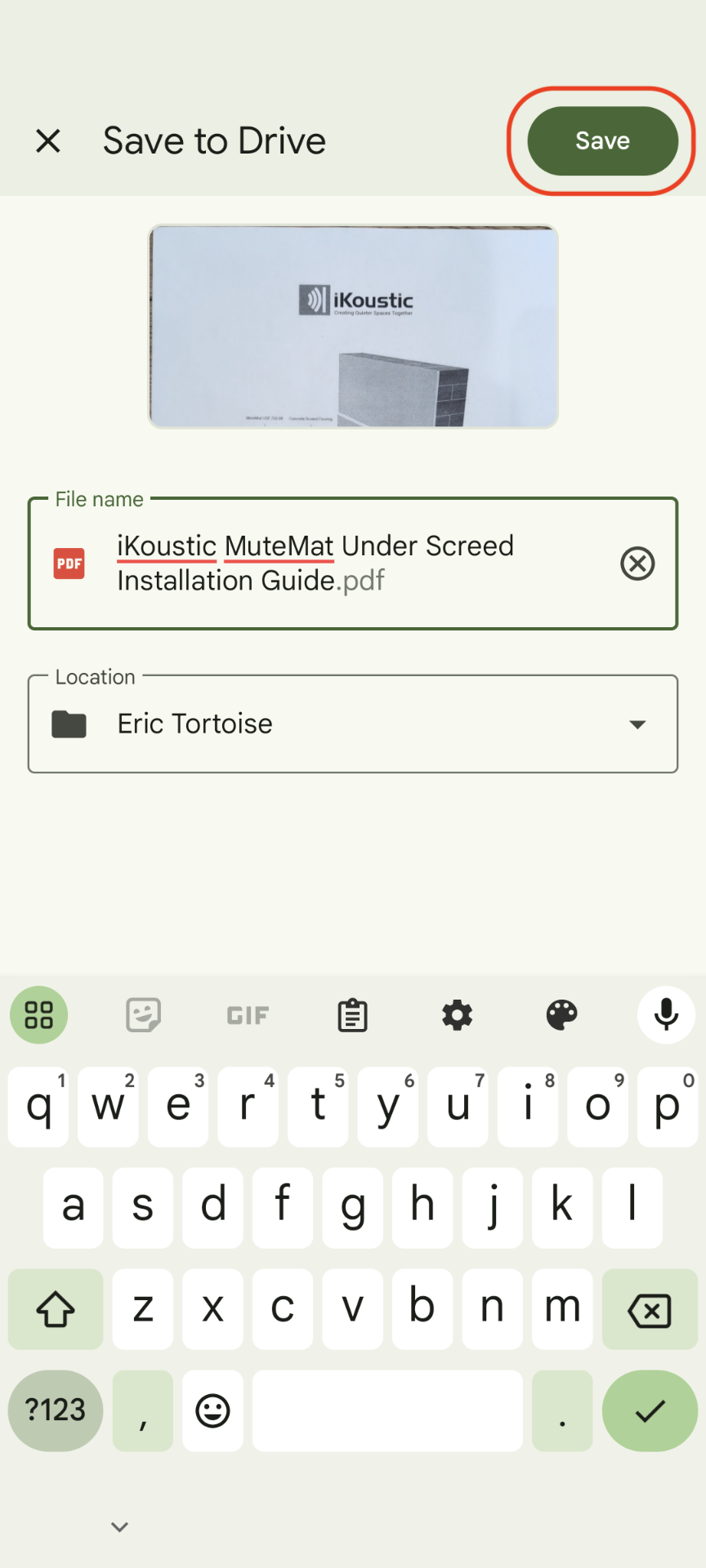
- When done, touch the Save button in the top right.
Scanning Documents on a Computer
Section titled “Scanning Documents on a Computer”Coming soon.